S21, S19, T21, T19, L9, L7 series

BiXBiT custom firmware for Antminer

Increase mining profitability with intelligent ASIC tuning, flexible performance management, and advanced BiXBiT firmware features.

  • +40% higher hashrate
  • up to 35% lower energy costs
  • 30 days free trial
  • 24/7 technical support

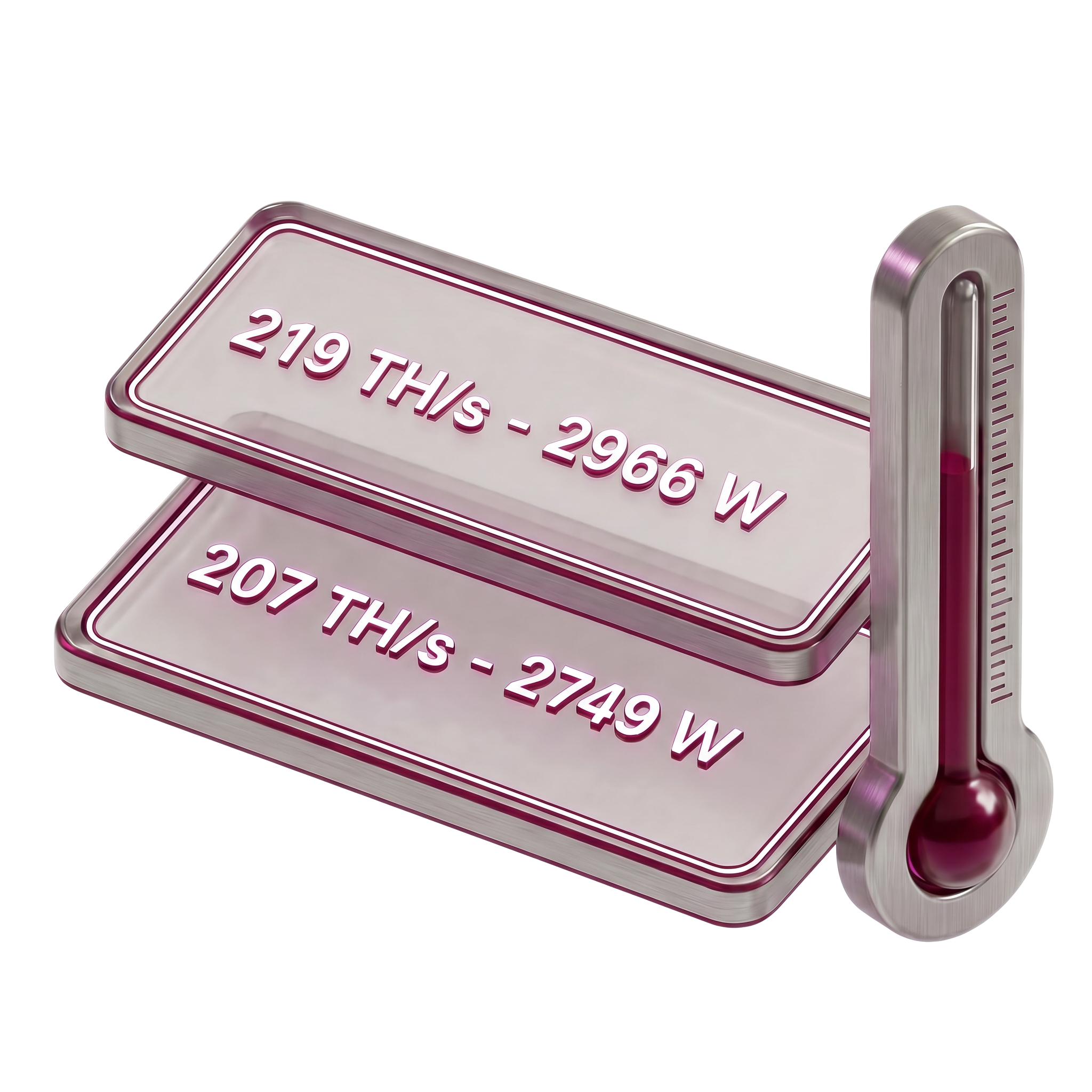
Stock vs BiXBiT

Request a partner version
[01/07]
Stock problem

Devices often operate inefficiently

Stock firmware uses uniform frequency and voltage settings for all ASIC chips, despite differences in their characteristics. This leads to excessive power consumption, reduced hashrate, and accelerated equipment degradation.

BiXBiT solution

Autotune

The autotune mechanism analyzes the efficiency of each chip and automatically selects the optimal operating profile for the device – an optimal balance of hashrate and power consumption. This reduces the load on the hardware and ensures stable operation of the ASIC without the need for manual configuration.
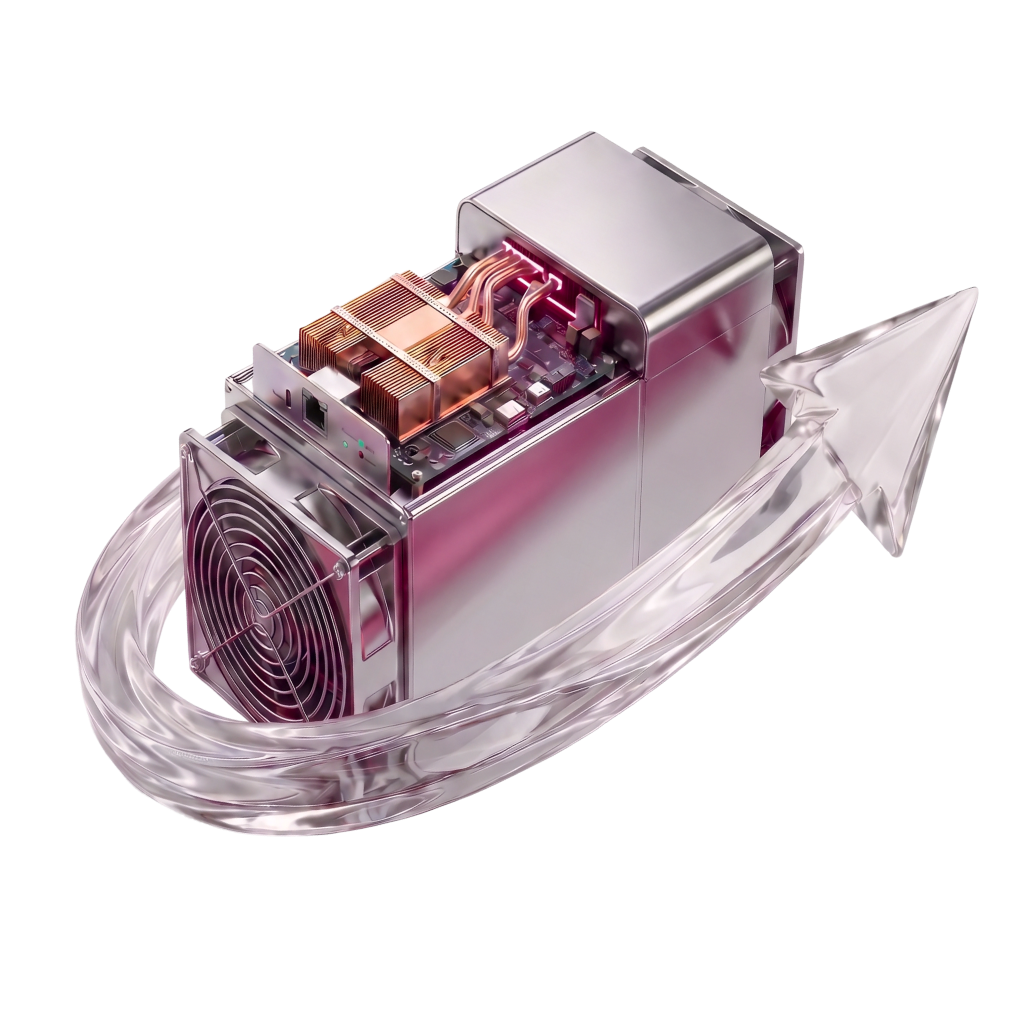
 Antminer ASIC with BiXBiT Autotune - automatic profile optimization
[01/07]

BiXBiT firmware — access to a complete mining ecosystem

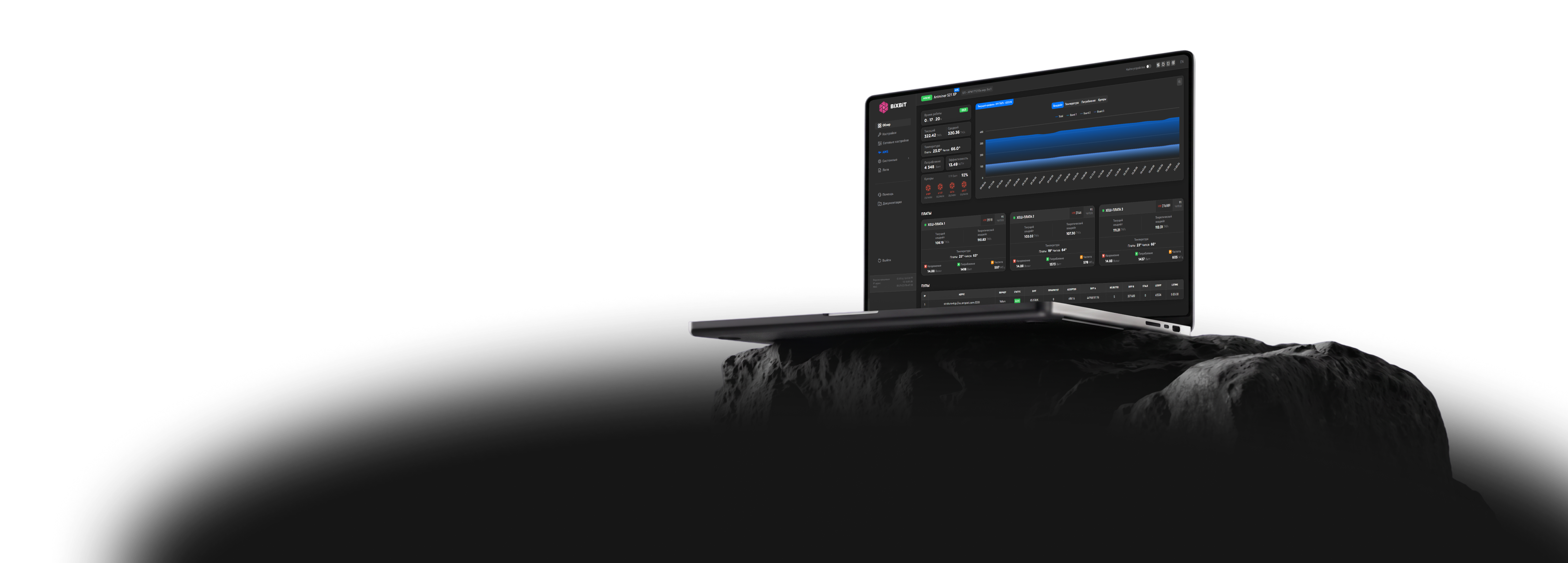
Get access to the BiXBiT ecosystem: remote monitoring for ASIC and built-in Farm Protect security for stable and safe equipment operation.

Open access to the BiXBiT AMS monitoring system

  • Bulk Device Management
  • Profit analysis and device status tracking
  • Remote access from anywhere in the world

Open access to BiXBiT FARM PROTECT

  • Stable connection
  • Secure connection
  • Traffic savings

Transparent
Pricing

Test the firmware on your equipment. Assess the increase in efficiency and stability risk-free.

Usage Cost

2.8%

of the total hashrate mined by the device

Antminer L7 Antminer L9 Antminer L11 Antminer T19 Antminer T21 Antminer S19 Pro Hyd. Antminer S19a Pro Antminer S19 XP Antminer S19j Pro Antminer S19j XP Antminer S19 Antminer S19i Antminer S19j Antminer S19j+ Antminer S19j Pro+ Antminer S19 Pro Antminer S19k Pro Antminer S19 Pro-A Antminer S19 Hydro Antminer S19a Antminer S19 Pro+ Hyd. Antminer S19 XP+ Hydro Antminer S19 XP+ Antminer S19e XP Hyd. Antminer S21 Antminer S21 XP Antminer S21 Pro Antminer S21 Imm Antminer S21 Hydro Antminer S21 XP Hyd. Antminer S21e Hyd. Antminer S21+ Antminer S21e XP Hyd. Antminer S21 XP Imm. Antminer S21+ Hydro

Control board for
Antminer + BiXBiT firmware

Our control board for Antminer devices, with pre-installed BiXBiT firmware, is designed to improve mining stability and maximize ASIC efficiency.

Learn about the terms
  • Quick installation
  • Secure boot — protection against overheating and virus attacks
  • Maximum hashrate — auto-tuning for each chip
  • Energy savings — lower consumption, higher profitability
  • Stable operation with enhanced efficiency modes

Choose your Antminer model

We will select the appropriate version of BiXBiT firmware for your ASIC. We support all Antminer models. If you didn't find your model in the list — contact us.

Contact the BiXBiT team

For any questions and partnership inquiries.

or

Choose your model. Get your firmware.

Fast and ready to download.

Model
20+ countries Clients in: UAE, Spain, Brazil, USA, Canada, and others
10 years of experience in mining solutions and the server sector
56 000+ ASICs optimized for maximum performance
200+ MW of successful projects based on liquid cooling

Partnership terms

For hosting providers, service companies, integrators
and resellers of mining solutions

Get special partnership terms, technical support, and additional opportunities to grow your business within the BiXBiT ecosyste

  • Reduced Dev Fee percentage
  • Adjustable Hotel Fee
  • Interface branding (White Label)
  • Custom feature 
development on request
  • Bulk remote installation for Whatsminer and Antminer
  • Custom API provision
  • Early access to updates
  • Priority 24/7 technical support
  • Dedicated personal 
manager
  • Joint business development and marketing support
Become a partner

FAQ

How do I enter pools on Antminer?
Go to Settings → Pools in the Antminer firmware and enter the pool address, worker name, and password. After saving the settings, the miner will start connecting to the selected pool.
How do I connect Antminer to the AMS system?
Open the AMS section in the Antminer firmware and enter the connection details. After that, the device will appear in the AMS control panel.
How do I choose a profile on Antminer?
Go to Settings → Autotune in the Antminer firmware. Here you can select one of the built-in profiles or generate a custom set of profiles for your specific device using the Generate profiles button.
How do I generate profiles on Antminer?
Go to Settings → Autotune and click Generate profiles — the system will build a set of profiles based on the device's current parameters. If profiles were already generated earlier and operating conditions have since changed (for example, the device underwent maintenance or the site's temperature conditions changed), run generation again using the Regenerate profiles button — the profiles will be recalculated for the new conditions.
How do I enable liquid cooling mode on Antminer?
Once the device is submerged in cooling fluid, go to Settings → Setup in the Antminer firmware and turn on the Liquid cooling parameter. After saving the settings, the miner will operate with liquid cooling taken into account.
How do I set up automatic profile switching based on device temperature?
Go to Settings → Profile Switcher. Set the maximum profile the device can automatically switch to, and the temperature thresholds at which the profile will switch up or down.
How do I download logs from Antminer?
Go to Miner Log → Download in the Antminer firmware and select the required time period. The log archive will be saved to the device.
How do I check Antminer’s connection to the pool?
The pool connection status is shown on the Dashboard tab: Alive — connection established, Dead — no connection. Connection attempts and any errors can be viewed in the Miner Log section.

Still have questions?

Contact us via Telegram! Our team of technicians is always available 24/7 and ready to help.

  • For technical questions about installation, setup, and operation of the firmware, choose "Technical Support"
  • For commercial inquiries, partnership, and connection terms, 
click "Commerce"